
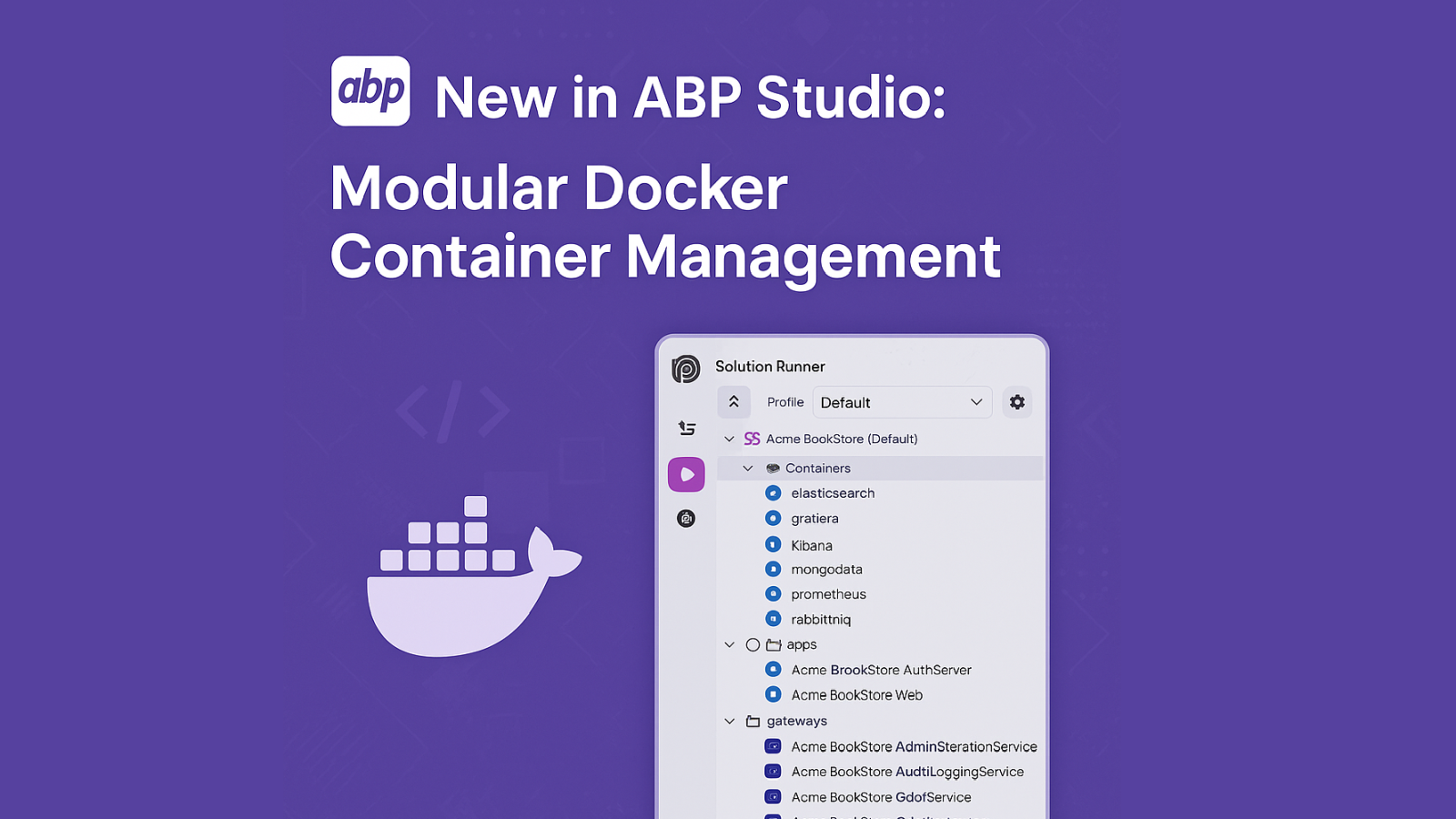
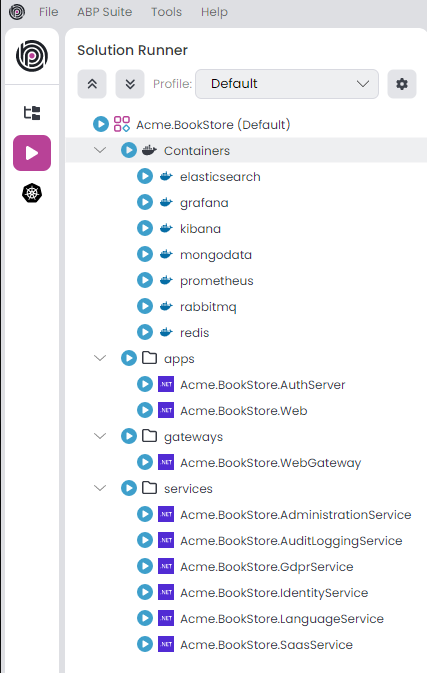
We're excited to announce a new improvement to Docker integration in ABP Studio! With the latest update, you can now manage Docker containers individually, add or remove them dynamically, and launch them either separately or collectively — all within the Studio.
🔄 What Has Changed? In previous versions, Docker dependencies were handled using a single docker-compose.override.yml file, which was automatically generated when creating a new solution if it is needed.
By default, this file included common development dependencies like PostgreSQL, Redis, RabbitMQ, etc., and was executed through a predefined script named docker-dependencies in the Solution Runner.
While this approach worked well for simple setups, it had some limitations:
All services were bundled into a single compose file. Adding or removing services required modifying this central file. It wasn't possible to start or stop individual containers independently. ✅ What's New? With the latest ABP Studio update:
Each Docker container can now be defined in its own docker-compose file. Compose files can be added or removed from the Studio UI. Containers can be: Started or stopped individually. Started/stopped in bulk. The Solution Runner recognizes Docker containers and can run them alongside application projects. ⚠️ Important Notes Before You Start Required: Use container_name for Docker Service Matching When working with the new modular Docker system in ABP Studio, each service must define a container_name. This name is used by ABP Studio to identify and map Docker containers to their corresponding service entries in the Studio UI.
Why is this mandatory? ABP Studio relies on container_name to: Detect whether the service is stopped or continue running. Perform start, stop, and status check operations reliably. Match Studio UI entries with actual running Docker containers. Without a container_name, container discovery may f